
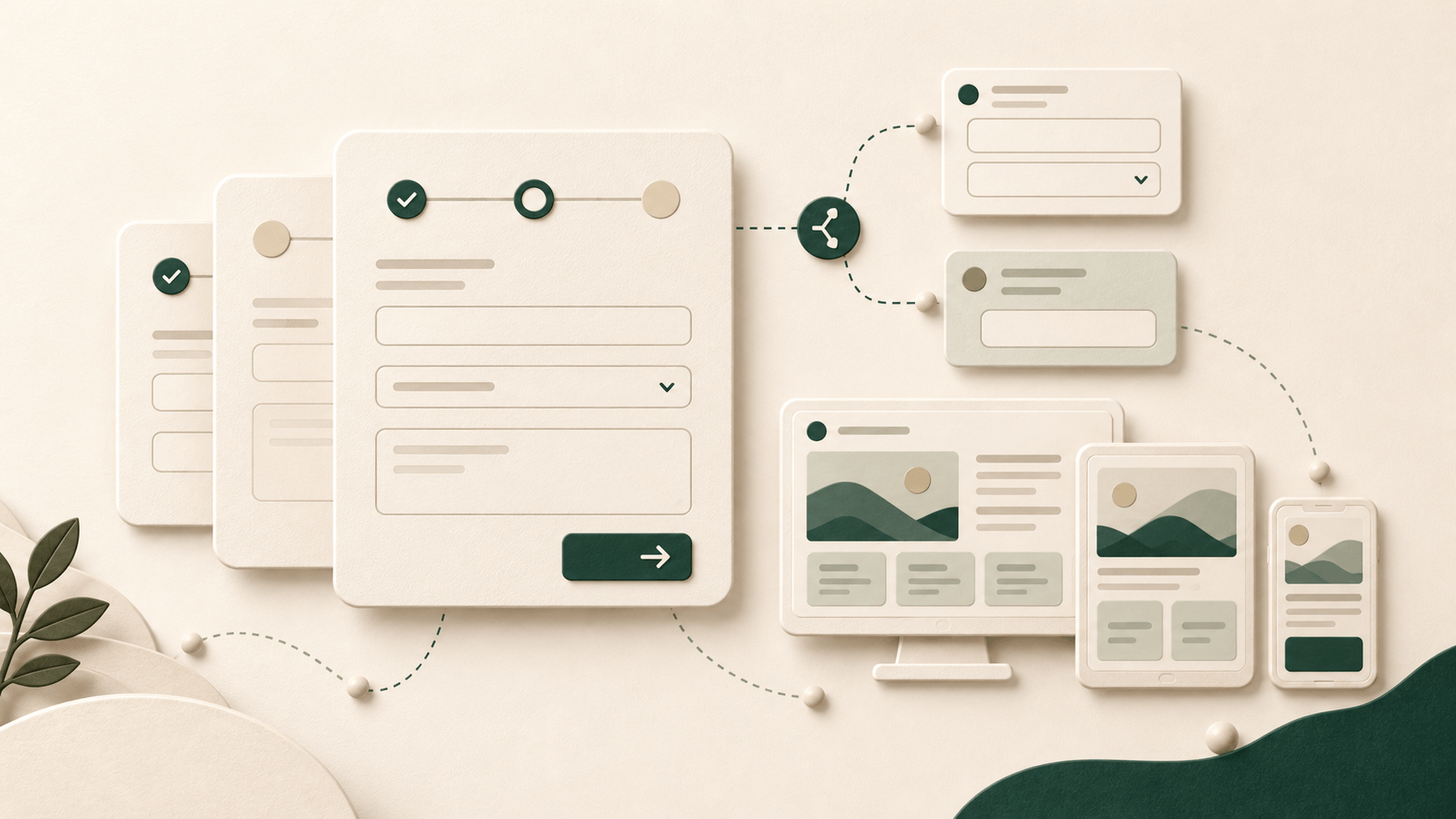
DesignSetGo 2.10 is out, and most of it is about forms.
Until now the Form Builder handled a short contact form well and not much beyond that. 2.10 lets you split a long form into steps, show a field only when an earlier answer calls for it, and send submissions somewhere other than your inbox. There are also new layout controls that work per device, and a batch of fixes for problems we found while testing all of it.
Multi-step forms
A long form is easier to finish one step at a time. Open a form’s Settings and choose “Split into steps”, or start from the new Multi-step template. Visitors see one step at a time with Next and Back buttons, and a progress indicator above: numbered steps, a progress bar, or nothing at all.
The Next button copies your Submit button’s colours, size and style, so you don’t style it twice. On the last step Submit takes Next’s place. You can set a Progress colour in the Color panel and style the step titles, either per step or for every form at once under Styles → Blocks → Form Step. When the form is sent, the steps go away and only your success message stays on screen.
If a visitor has JavaScript turned off, the whole form shows as one page and still works.
Here’s a three-step form to try. Pick “A client” on the first step and a client name question appears on the second. It’s only a demo, so feel free to make things up.
Fields that show and hide
Every field now has a Conditional logic setting. “Show Company name when Customer type is Business” is the typical example, and checkboxes and dropdowns both work as the trigger. A hidden field is skipped when the form is sent, even if it’s required, so nobody gets stuck on a question they never saw. In a multi-step form, a step whose fields are all hidden is skipped entirely.
The rules are checked on the server as well as in the browser, so a hidden field’s answer is never stored.
Where submissions go
Submissions used to live in wp-admin and your inbox, and that was it. Now you can export them to CSV from the Form Submissions screen, filtered by form and by date range. The columns use your field labels, and the form filter tells you which page each form is on, which helps when three forms are all called “Contact”.
You can also send each submission to a webhook, so Zapier, Make or your CRM gets it the moment it arrives. Set the URL in the form’s Settings panel and a signing secret under DesignSetGo → Settings → Integrations. Failed deliveries retry on their own, each submission shows whether it was delivered, and there’s a Resend button for the ones that weren’t. The URL field warns you if the address can’t receive anything, such as one on a private network.
The submission screen itself is easier to read too. Each answer shows its field label next to the field name, and a ticked checkbox says “Yes” instead of “1”.
Forms without JavaScript
This one was a real bug. If a visitor’s browser had JavaScript off or blocked, a DesignSetGo form looked fine, took their answers, and lost them on submit. Forms now send without JavaScript and show your success or error message afterwards. If something’s wrong, such as a required field left empty, the visitor’s answers stay filled in and the message tells them what to fix.
Layout controls per device
Section, Row and Grid, and the blocks directly inside them, have a new Layout overrides area in their Settings. Pick Desktop, Tablet or Mobile, then set size, spacing, gap, position and layering for that screen size only. Empty fields use the value from the larger screen, so you only set what changes.
Grid also gets Tablet and Mobile column templates, so a narrow column beside a wide one can carry down to phones instead of collapsing into equal columns. And Custom CSS has Desktop, Tablet and Mobile tabs. Tablet CSS applies at 1024px and below, Mobile at 767px and below.
One change to check after updating: a Grid set to two or more columns on mobile now keeps the column spans you gave its items, instead of forcing every item to one column. That’s usually what you want, but it will change how some of those Grids look on a phone. Single-column mobile Grids still stack as before.
Fixes
- Typing into an empty Custom CSS box used to jump out of the box after the first letter, keep only that letter as CSS, and put the rest of what you typed into the block’s own text. That’s fixed.
- Adding or removing a background video in the editor no longer closes the block’s settings.
- Screen readers no longer announce the decorative drawing in Icon, Icon List and Icon Button on top of their label.
- Hotspot markers in the editor sit where they appear on the site. Every marker after the first used to show lower than it really was.
- An Advanced Heading’s font size, line height and letter spacing apply to the heading instead of losing to your theme.
- Form message boxes, date pickers and dropdowns use your theme’s font.
- Outline buttons in the bundled patterns show their label instead of a solid dark box, including buttons already on your pages.
- Countdown patterns start 30 days out when you insert them, instead of announcing that the countdown has ended.
- Bundled patterns use made-up company and person names instead of real brands.
On the privacy side, form email logs no longer record recipient addresses or subjects, Map error logs no longer record the address you typed, and your Turnstile and webhook secrets stay hidden from AI assistants connected to your site.
Try DesignSetGo 2.10
Update, then open the longest form on your site and try “Split into steps”. If you’ve got Grids with two or more columns on mobile, have a look at them on a phone while you’re at it.